Easy Ways to Speed Up and Clean Your PC Fast
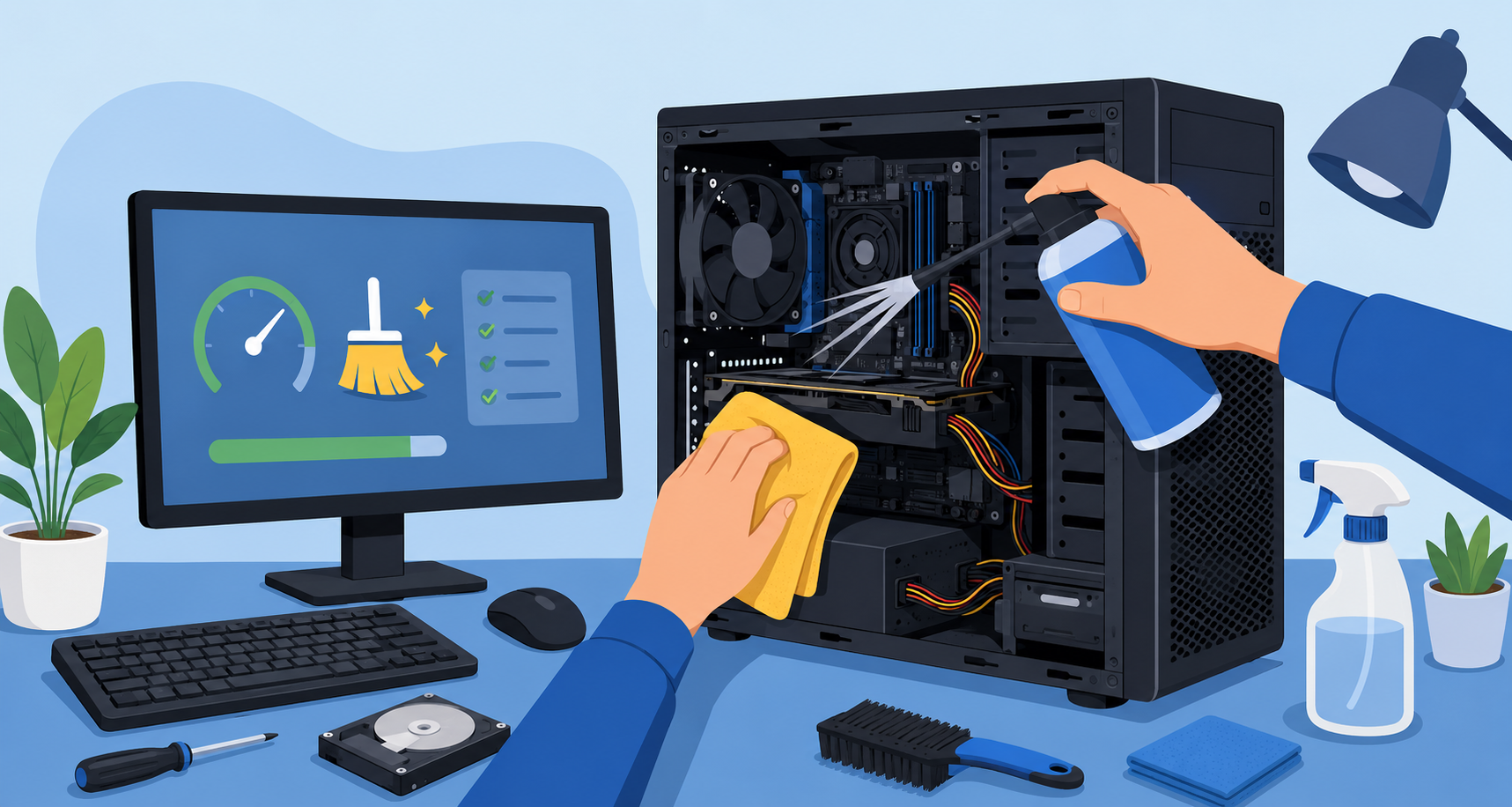
A slow, cluttered computer can quickly turn everyday tasks into frustrating experiences. Whether you’re working remotely, attending online classes, gaming, or simply browsing the web, a well-maintained PC performs faster, runs smoother, and lasts longer.
Over time, dust buildup, unnecessary files, outdated software, and overloaded startup programs can reduce your computer’s performance significantly. The good news is that you do not always need expensive upgrades to improve speed. In many cases, proper cleaning and maintenance can make a noticeable difference.
If your computer feels sluggish, overheats frequently, or takes forever to boot up, these practical tips can help restore performance and keep your system running efficiently.
Why Keeping Your PC Clean Matters
Many people focus only on software performance while ignoring the physical condition of their computer. Both are equally important.
A clean PC improves airflow, prevents overheating, reduces wear on internal components, and helps maintain stable performance. At the same time, cleaning unnecessary files and optimizing software reduces lag and improves responsiveness.
Regular maintenance can help:
Speed up startup times
Improve multitasking performance
Reduce overheating issues
Extend hardware lifespan
Prevent crashes and freezing
Improve internet browsing and streaming
If your internet also feels slow while using your computer, improving your connection setup alongside your PC maintenance can make an even bigger difference.
Signs Your PC Needs Cleaning and Optimization
Your computer will usually show warning signs before performance becomes unbearable.
Slow Startup Times
If your PC takes several minutes to boot, startup applications and background services may be overwhelming system resources.
Frequent Overheating
Excess dust inside the computer case can block airflow and force fans to work harder. This often causes overheating and noisy fan operation.
Programs Constantly Freezing
A cluttered hard drive, low memory, or outdated software can cause applications to freeze or crash unexpectedly.
Internet Browsing Feels Slow
Sometimes users blame their PC when the issue is actually their network setup. Learning the differences between 2.4GHz and 5GHz WiFi connections can help improve browsing performance and streaming speeds.
Random Restarts or System Errors
If your system randomly shuts down or displays errors, overheating and outdated drivers could be contributing factors.
How Often Should You Clean Your PC?
There is no universal schedule because every environment is different.
However, most computers benefit from a basic cleaning every three to six months and a deeper internal cleaning at least once a year.
Some environments require more frequent maintenance, including:
Homes with pets
Carpeted rooms
Dusty workspaces
Industrial environments
Shared family computers
Gaming setups with heavy daily usage
If you notice dust around vents or your fans sound louder than usual, it is probably time for a cleanup.
Start With Software Cleanup First
Before opening your computer case, begin with software optimization. This alone can improve performance dramatically.
Remove Unused Programs
Many computers accumulate software that is rarely used. Uninstalling unnecessary applications frees storage space and reduces background activity.
On Windows:
Open Settings
Go to Apps
Review installed programs
Remove anything unnecessary
Be cautious not to uninstall important system software or drivers.
Disable Startup Programs
Too many startup apps can slow down your PC every time you power it on.
To manage startup apps:
Press Ctrl + Shift + Esc
Open Task Manager
Click the Startup tab
Disable non-essential applications
Focus on programs you do not need immediately after startup.
Delete Temporary Files
Temporary files build up over time and waste valuable storage space.
Windows includes built-in cleanup tools:
Disk Cleanup
Storage Sense
Temporary File Removal
Clearing browser cache and downloads folders can also help free space.
Update Your Operating System
Software updates often include performance improvements, bug fixes, and security patches.
Keeping your system updated helps maintain stability and responsiveness.
Scan for Malware and Viruses
Malware can significantly slow down a computer by consuming resources in the background.
Use trusted antivirus software to run regular scans and remove threats.
Cleaning the Physical Components Safely
Once the software side is optimized, physical cleaning can further improve airflow and system health.
Always shut down and unplug your computer before cleaning.
Best Practices Before Cleaning
Before touching internal hardware, remember these important safety precautions:
Never spray liquid directly onto components
Use compressed air instead of vacuums
Avoid excessive moisture
Handle components gently
Prevent fans from spinning freely during cleaning
These precautions help avoid accidental hardware damage.
How to Clean the Inside of Your PC
Dust buildup inside your computer is one of the most common causes of overheating.
Use Compressed Air Carefully
Compressed air helps remove dust from:
Cooling fans
Heat sinks
Air vents
Graphics cards
Power supply areas
Hold fans in place while cleaning so they do not spin excessively.
Wipe Dust From Surfaces
Use a lint-free microfiber cloth to remove stubborn dust around the case interior.
Avoid touching sensitive circuitry directly.
Organize Cables
Messy internal cables can restrict airflow.
If possible, organize cables neatly to improve ventilation and cooling efficiency.
Cleaning Your Keyboard and Mouse
Keyboards and mice collect dirt, oils, crumbs, and bacteria over time.
Keyboard Cleaning Tips
Turn the keyboard upside down gently to remove debris. Use compressed air between keys and wipe surfaces with a lightly damp microfiber cloth.
Disinfecting keyboards regularly is especially important in shared workspaces.
Mouse Cleaning Tips
Clean the mouse sensor area and exterior using rubbing alcohol and a soft cloth.
Smooth tracking improves responsiveness and accuracy.
Cleaning Your Monitor Properly
Many users accidentally damage monitors by using harsh chemicals.
Safe Monitor Cleaning
Use:
A microfiber cloth
Distilled water if needed
Gentle circular motions
Avoid paper towels or strong cleaning chemicals.
A clean display improves visibility and reduces eye strain during long work sessions.
Keep Your Internet Setup Optimized Too
Sometimes a slow PC experience is partially caused by poor internet performance rather than the computer itself.
If your connection frequently drops while working or streaming, troubleshooting your network can help eliminate lag and interruptions.
Upgrade Storage for Better Performance
Older hard drives are often one of the biggest reasons PCs become slow.
Switch From HDD to SSD
Upgrading from a traditional hard drive to a solid-state drive (SSD) can dramatically improve:
Boot times
File loading speeds
Application responsiveness
Overall system performance
Even older computers can feel significantly faster after an SSD upgrade.
Free Up Storage Space Regularly
A nearly full drive slows down performance and reduces efficiency.
Files You Can Safely Remove
Review and clean:
Downloads folder
Duplicate files
Old installers
Unused videos
Large temporary files
Cloud storage solutions can also help reduce local storage usage.
Keep Drivers Updated
Outdated drivers can create compatibility issues and reduce performance.
Important drivers to keep updated include:
Graphics drivers
Network adapters
Audio drivers
Chipset drivers
Manufacturers regularly release updates to improve stability and efficiency.
Improve Cooling and Airflow
Heat is one of the biggest enemies of long-term computer performance.
Position Your PC Properly
Avoid placing your computer:
Against walls
Inside tight cabinets
On thick carpet surfaces
Proper airflow helps maintain lower temperatures.
Consider Additional Cooling
For gaming PCs or high-performance systems, additional cooling solutions may help, including:
Extra case fans
Laptop cooling pads
Improved CPU coolers
Lower temperatures help preserve hardware lifespan.
Restart Your Computer More Often
Many users leave their computers running for weeks at a time.
Restarting clears temporary memory usage, refreshes system processes, and often resolves minor performance issues quickly.
A simple reboot can sometimes make a surprisingly large difference.
Back Up Important Files
Before performing major cleanups or upgrades, always back up important data.
Use:
External drives
Cloud storage
Automatic backup software
Protecting your files is just as important as improving performance.
When It’s Time to Replace Your PC
Even with excellent maintenance, older hardware eventually reaches its limits.
You may want to consider replacing your PC if:
It cannot support modern software
Performance remains poor after upgrades
Hardware failures become frequent
Repair costs exceed replacement value
However, many computers can remain reliable for years with proper maintenance and occasional upgrades.
Final Thoughts
Keeping your PC clean and optimized does not need to be complicated. Small maintenance habits can significantly improve performance, extend hardware lifespan, and create a smoother everyday experience.
By combining regular software cleanup, proper hardware maintenance, and optimized internet settings, you can keep your computer running efficiently without spending a fortune on upgrades.
Whether you use your PC for work, gaming, streaming, or daily browsing, consistent maintenance helps prevent slowdowns before they become major problems.
Frequently Asked Questions
How can I make my PC run faster without buying new hardware?
You can improve performance by removing unused programs, disabling startup apps, deleting temporary files, updating drivers, and cleaning dust from internal components.
How often should I clean my computer?
Most PCs should be cleaned every three to six months, while deeper internal cleaning should happen at least once a year.
Can dust really slow down a computer?
Yes. Dust restricts airflow, increases heat, and forces components to throttle performance to prevent overheating.
Is compressed air safe for cleaning PCs?
Yes, compressed air is one of the safest ways to remove dust from computer components when used properly.
Will upgrading to an SSD make a big difference?
Absolutely. SSD upgrades are one of the most effective ways to improve boot times and overall responsiveness.
Why does my internet feel slow even when my PC is fast?
Network congestion, outdated routers, poor WiFi placement, and unstable connections can all affect browsing performance independently from your computer.
Related Posts
 cheap internet deals
cheap internet plans
cheap internet deals
cheap internet plans
Why Utah and the Mountain West Attract Remote Workers
Discover why Utah and the Mountain West are attracting remote workers with affordable living, reliable internet, lower utility costs, and growth.
 Technology
Why Your Internet Keeps Disconnecting and How to Fix It
Learn why your internet keeps disconnecting and discover proven fixes for router issues, Wi-Fi interference, faulty cables, and network instability.
 Broadband Deals
cheap internet deals
Subscription
Broadband Deals
cheap internet deals
Subscription
Affordable Internet and TV Bundles for the 2026 World Cup
Compare affordable internet and TV bundles for sports fans and enjoy reliable coverage of the 2026 World Cup without overspending.
 Internet Bundles
How to Detect ISP Throttling and Improve Your Internet Speed
Learn how to detect ISP throttling, identify common warning signs, test your connection, and improve internet speed for streaming, gaming, and work.
 cheap internet deals
cheap internet plans
cheap internet offers
cheap internet deals
cheap internet plans
cheap internet offers
Which ISP Offers the Best Long-Term Price Stability?
Compare ISPs with the most stable long-term pricing. Learn how to avoid bill increases, evaluate plans, and choose affordable internet service.