Why Your Internet Keeps Disconnecting and How to Fix It
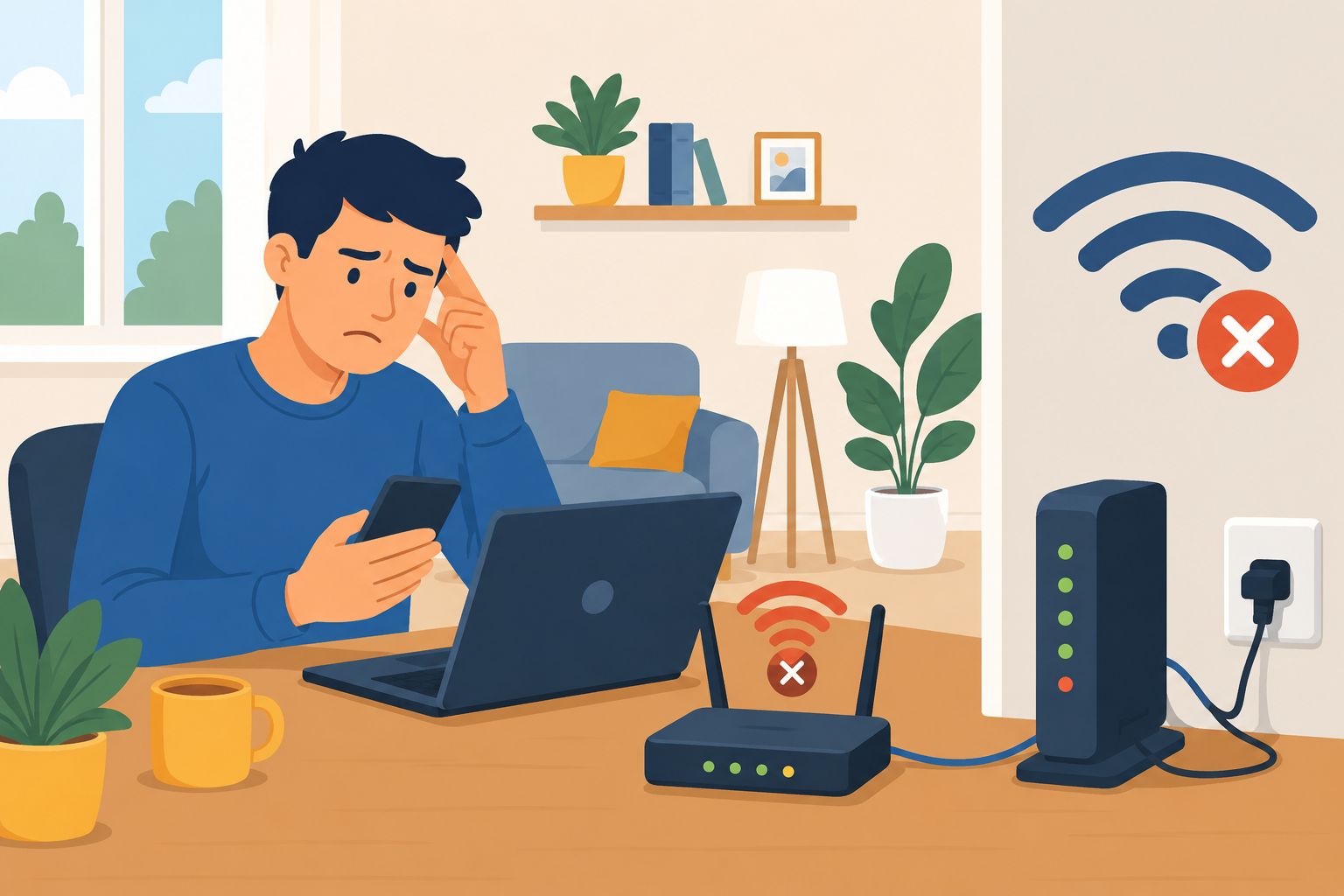
A stable internet connection is no longer a luxury. Whether you’re working remotely, attending virtual classes, streaming your favorite shows, or gaming online, a reliable connection is essential. When your internet keeps dropping and reconnecting, even simple online activities can become frustrating and disruptive.
Frequent internet disconnections can interrupt video calls, slow down downloads, create lag during online gaming, and affect productivity throughout the day. The good news is that many connection problems can be identified and resolved without extensive technical knowledge.
If you’ve been asking yourself, “Why does my internet keep disconnecting?” this guide covers the most common causes and practical solutions to help restore a stable connection.
Within the first few steps of troubleshooting, many users discover that factors affecting remote productivity often overlap with the same connectivity challenges discussed in effective home office internet setups.
Why Does My Internet Keep Disconnecting?
Internet connection drops can occur for several reasons. Sometimes the issue is related to your equipment, while other times the problem originates from network congestion, wireless interference, or your internet service provider.
Understanding the root cause is the first step toward finding a lasting solution.
Common Causes of Internet Disconnections
Several issues commonly contribute to unstable internet performance:
Weak Wi-Fi signals
Router configuration problems
Outdated router firmware
Faulty network hardware
Damaged Ethernet cables
Wireless interference
Overloaded home networks
Modem software issues
ISP service interruptions
Identifying which of these factors is affecting your connection can save significant time and frustration.
How Internet Drops Affect Daily Activities
Many people underestimate how much an unstable connection impacts everyday tasks until they experience repeated disruptions.
Interrupted Video Meetings
Remote workers depend heavily on video conferencing platforms for communication and collaboration.
When your internet connection disconnects unexpectedly, meetings may freeze, audio can become distorted, and participants may lose connection entirely. Rejoining multiple times during an important meeting can create unnecessary delays and reduce productivity.
Online Learning Challenges
Students attending virtual classes rely on consistent internet access for lectures, assignments, and group projects.
Connection drops can result in missed instructions, incomplete submissions, and difficulties participating in classroom discussions.
Gaming Performance Problems
Online gaming requires low latency and a continuous connection.
Even a brief interruption can result in lag spikes, character freezes, disconnections from servers, or lost progress during competitive matches.
Streaming and Entertainment Interruptions
Frequent buffering, reduced video quality, and interrupted streaming sessions are often signs of an unstable internet connection.
These disruptions can significantly affect the viewing experience, especially when multiple users are connected simultaneously.
Check Your Router’s Coverage Area
One of the most common reasons for internet instability is poor Wi-Fi signal strength.
Move Closer to the Router
Wi-Fi signals weaken as they travel through walls, floors, and furniture. If you are located near the edge of your router’s coverage area, your device may struggle to maintain a consistent connection.
Try moving closer to the router and monitor whether the connection improves.
Optimize Router Placement
Router placement has a significant impact on wireless performance.
For best results:
Place the router in a central location
Keep it elevated above the floor
Avoid placing it inside cabinets
Keep it away from metal objects
Minimize nearby electronic interference
A well-positioned router can dramatically improve signal reliability throughout your home.
Update Your Router Firmware
Router manufacturers regularly release firmware updates to improve performance, security, and stability.
Why Firmware Updates Matter
Outdated firmware can cause:
Random disconnections
Security vulnerabilities
Compatibility issues
Reduced network performance
Many users overlook firmware updates even though they often resolve recurring connectivity problems.
Enable Automatic Updates
Most modern routers allow automatic firmware updates.
If available, enable this feature to ensure your device receives the latest performance improvements without requiring manual intervention.
When evaluating network equipment upgrades, reviewing the latest recommendations for choosing reliable Wi-Fi hardware can help improve long-term network stability.
Restart Your Modem and Router
Sometimes the simplest solution is the most effective.
Perform a Power Cycle
Network devices can develop temporary software issues when left running continuously for extended periods.
Follow these steps:
Turn off your modem.
Turn off your router.
Unplug both devices.
Wait 60 seconds.
Plug the modem back in.
Wait until it fully reconnects.
Turn the router back on.
This process clears temporary errors and refreshes your connection to your ISP.
Schedule Regular Restarts
Some users find that restarting network equipment once every few weeks helps maintain consistent performance.
Many modern routers even offer automatic restart schedules.
Inspect Your Cables and Physical Connections
Physical hardware issues are another common source of internet instability.
Check Ethernet Cables
Even if a cable appears normal externally, internal damage can affect performance.
Inspect cables for:
Sharp bends
Frayed sections
Loose connectors
Visible wear and tear
Replacing old Ethernet cables is relatively inexpensive and can quickly eliminate connection issues.
Verify All Connections
Ensure every cable is securely connected between:
Modem and wall outlet
Modem and router
Router and connected devices
Loose connections can create intermittent outages that are difficult to diagnose.
Troubleshoot Device-Specific Problems
If only one computer, laptop, or device experiences disconnections, the issue may not be your internet connection at all.
Update Network Drivers
Outdated network drivers can cause:
Connection drops
Slow speeds
Compatibility problems
Check your device manufacturer’s website for the latest network adapter drivers.
Test Multiple Devices
Compare performance across:
Smartphones
Tablets
Laptops
Smart TVs
If all devices experience the same issue, the problem likely exists within your network infrastructure rather than a specific device.
Reduce Wireless Interference
Wireless interference is a major cause of unstable Wi-Fi connections.
Common Sources of Interference
Several household devices operate on frequencies similar to Wi-Fi networks:
Microwave ovens
Baby monitors
Bluetooth devices
Wireless speakers
Cordless phones
Security cameras
These devices can interfere with your router’s signal and create intermittent connectivity problems.
Change Wi-Fi Channels
Many routers automatically select channels, but crowded neighborhoods can create overlap.
Switching to a less congested channel can improve stability and reduce interference.
Modern routers often provide channel optimization features within their settings panel.
Manage Network Congestion
A crowded network can strain available bandwidth and cause performance issues.
Too Many Connected Devices
Today’s households often have dozens of connected devices, including:
Smartphones
Smart TVs
Gaming consoles
Streaming devices
Security systems
Smart home equipment
When too many devices compete for bandwidth simultaneously, internet performance may suffer.
Monitor Bandwidth Usage
High-bandwidth activities such as:
4K streaming
Large downloads
Cloud backups
Online gaming
can consume a significant portion of available capacity.
Limiting heavy usage during peak hours may improve connection reliability.
Consider Upgrading Your Internet Plan
Sometimes the issue isn’t your equipment—it’s simply insufficient bandwidth.
Signs Your Current Plan Is Too Small
You may need a faster internet plan if:
Multiple users work from home
Several devices stream simultaneously
Video calls frequently freeze
Download speeds feel consistently slow
Modern households often require more bandwidth than older internet plans were designed to provide.
Match Your Plan to Your Usage
Review your current internet package and compare it to your household’s needs.
A properly sized plan can eliminate many recurring performance issues while providing a smoother online experience.
When to Contact Your Internet Service Provider
If you’ve completed all troubleshooting steps and continue experiencing frequent disconnections, the issue may originate outside your home.
ISP Network Problems
Your provider may be dealing with:
Network outages
Infrastructure maintenance
Equipment failures
Signal quality issues
Technical support teams can often identify these problems remotely.
Request a Line Test
Ask your provider to perform a diagnostic test on your connection.
They can verify signal levels, identify service interruptions, and determine whether technician assistance is necessary.
Conclusion
An internet connection that constantly drops and reconnects can disrupt work, online learning, gaming, streaming, and everyday communication. Fortunately, most connection issues can be traced to common causes such as weak Wi-Fi signals, outdated firmware, faulty cables, network congestion, or equipment problems.
Start by checking your router placement, updating firmware, inspecting cables, and restarting your networking equipment. If the problem continues, reduce wireless interference, evaluate your bandwidth requirements, and contact your ISP for further diagnostics.
If you’re ready to improve your overall connectivity experience, explore available high speed internet options that better match your household’s needs and online activities.
Frequently Asked Questions
Why does my internet keep disconnecting every few minutes?
Frequent disconnections are often caused by weak Wi-Fi signals, outdated router firmware, damaged cables, network congestion, or ISP-related issues.
Can a bad router cause internet drops?
Yes. Aging routers, overheating hardware, outdated firmware, and internal hardware failures can all contribute to unstable internet connections.
How do I know if my modem is failing?
Signs include frequent disconnects, random restarts, slow speeds, flashing warning lights, and difficulty maintaining a stable connection.
Should I replace my Ethernet cables?
If your cables are old, damaged, or experiencing intermittent connectivity issues, replacing them is a simple and cost-effective troubleshooting step.
When should I contact my ISP?
Contact your ISP after you’ve ruled out router issues, cable problems, device-specific issues, and network congestion. They can test your connection and identify external service problems
Related Posts
 Technology
Wifi
Technology
Wifi
How To Test Your Internet Speed?
Slow internet connection? Test your internet speed if you ever thought your internet is slower than normal or it's not as fast as you are paying for. In order to determine if your internet speed slower than your plan, running speed tests is the answer. But how do speed test works? The speed test is performed by measuring the time it takes to respond from a user client's request. Upon receiving data to the server from the client request, the server will send back a reply and the time is measured...
 cheap internet deals
Best Free & Legal Movie Streaming Sites in 2026
Discover the best free and legal movie streaming sites in 2026, including Tubi, Pluto TV, Plex, Hoopla, Kanopy, and more to watch movies online for free.
 Technology
YouTube Key Commands That Make Watching Videos Faster
Learn the best YouTube key commands to navigate videos faster, improve productivity, control playback easily, and enjoy a smoother streaming experience.
 Regulations
Technology
Regulations
Technology
What is An Internet Cookie?
Learn what internet cookies are, how cookies work, the different types of cookies, their benefits, privacy concerns, and how to manage them safely online.
 cheap internet plans
mobile phone plans
Broadband Deals
cheap internet plans
mobile phone plans
Broadband Deals
Which Internet Providers Offer a Cheap Mobile Plan?
Discover which internet providers offer a cheap mobile plan when you bundle services. Compare savings, features, and the best options for your budget.