Double Your Internet Speed With This DNS Settings
The Internet is now used by a large number of people all over the world. As a result, traffic speed is a source of concern. If you're having trouble connecting, it may be due to a number of things, like DNS issues, internet provider issues, and so on. A simple DNS hack, on the other hand, will help you improve your Internet speed.
In Microsoft Windows, you can take a variety of steps to increase Internet speed. If the speed of your Internet connection is slow, you can not blame your service provider. There may be a number of explanations for this. The Domain Name System, or DNS, would be the key issue.
Also, Read: 14 Free DNS Servers to check out in 2021
DNS servers all over the world allow you to convert domain names to IP addresses automatically. The browser sends signals to the DNS server when you type a domain name (eg: https://www.cheapinternetserviceprovider-jna.com), which converts the URL into IP addresses. DNS servers can only recognize the IP address format, not the actual alphabetic domain name. ` ```
It's difficult to keep track of all of the sites' IP addresses. As a result, there is a URL scheme in place for convenience. The DNS's primary function is to turn a domain name into an IP address.
The DNS has its own internal network, which is important to remember. For example, once the domain name is properly resolved to an IP address, a particular DNS server can communicate with others.
If your current Internet connection is sluggish, you should think about switching to a different device. Your Internet Service Provider (ISP) will provide you with a DNS server by default. Providers now employ stringent quality management procedures. As a result, there will be no issues. Alternate DNS servers can be used if you have problems with your current DNS servers.
Also Read: Top 5 Best Cheap Internet Providers
To increase the speed of your Internet connection, you can use OpenDNS or Google DNS. If you're not familiar with OpenDNS, it's a common DNS service aimed at users who are having trouble connecting to the internet. To properly configure DNS servers, follow the steps outlined below.
- In Windows, right-click on the taskbar located on the bottom right-hand side.
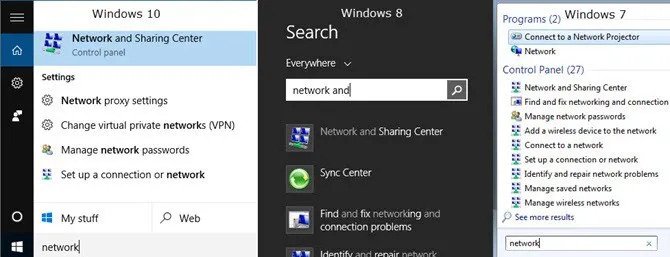
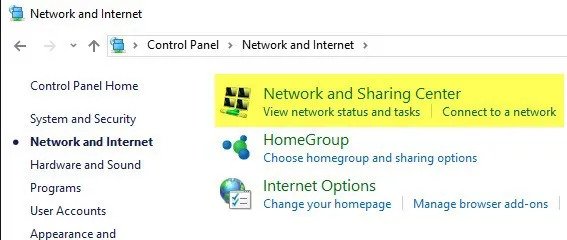
- Select Open Network and Sharing Center option.
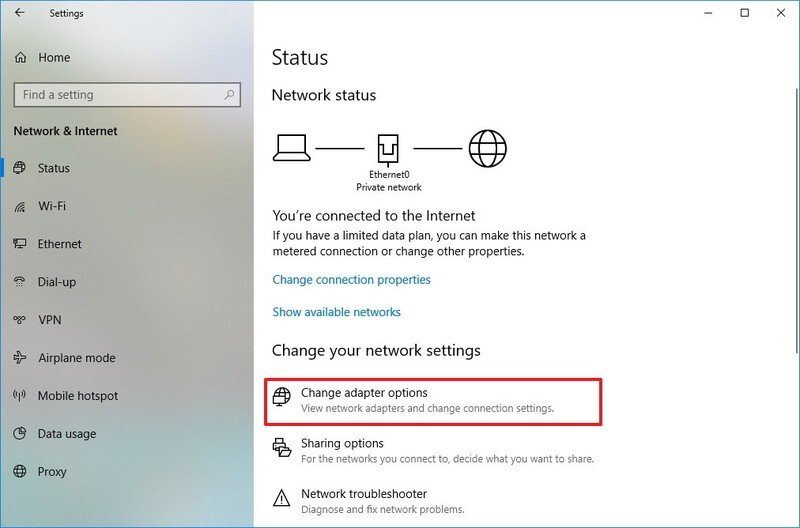
- Select the Change adapter settings option.
- Right-click on the Ethernet icon and select Properties.
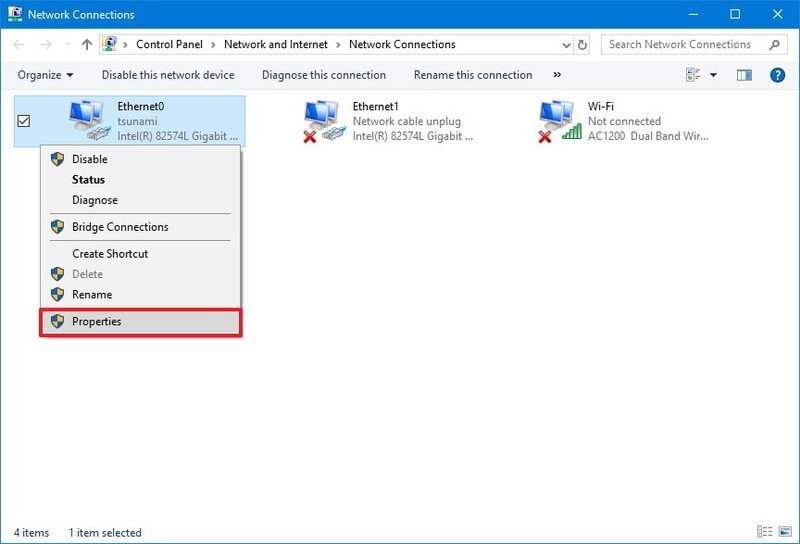
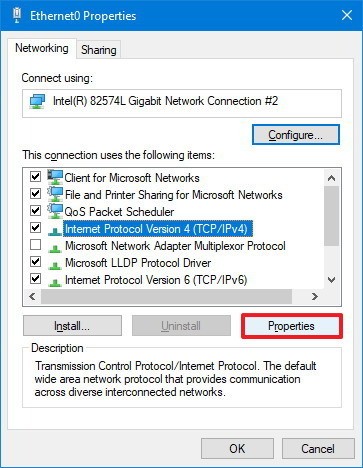
- Double-click the Internet Protocol Version 4 (TCP/IPv4) option.
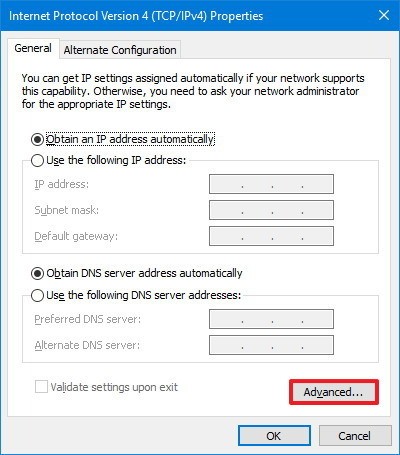
- Select Use the following DNS server addresses option and enter the following IP addresses.
| OpenDNS | |
|---|---|
| Preferred DNS server: | 208.67.222.222 |
| Alternate DNS server: | 208.67.220.220 |
| Google DNS | |
|---|---|
| Preferred DNS server: | 8.8.8.8 |
| Alternate DNS server: | 8.8.4.4 |
After entering the above-mentioned IP addresses, right-click on the LAN icon and select Disable Connectivity from the menu. After that, you'll need to re-enable it. Otherwise, the modifications you've made will be rendered ineffective. If your provider has blocked a website, the above hack will come in handy. You will interact with the web without changing the settings.
In the event that your service provider's default DNS goes down, the DNS servers mentioned above will come in handy. It's worth noting that the above programs are also subject to failure. As a result, you should keep a close eye on the situation to identify the problematic area.
Related Posts
 cheap internet deals
cheap internet plans
cheap internet deals
cheap internet plans
Why Utah and the Mountain West Attract Remote Workers
Discover why Utah and the Mountain West are attracting remote workers with affordable living, reliable internet, lower utility costs, and growth.
 Technology
Why Your Internet Keeps Disconnecting and How to Fix It
Learn why your internet keeps disconnecting and discover proven fixes for router issues, Wi-Fi interference, faulty cables, and network instability.
 Broadband Deals
cheap internet deals
Subscription
Broadband Deals
cheap internet deals
Subscription
Affordable Internet and TV Bundles for the 2026 World Cup
Compare affordable internet and TV bundles for sports fans and enjoy reliable coverage of the 2026 World Cup without overspending.
 Internet Bundles
How to Detect ISP Throttling and Improve Your Internet Speed
Learn how to detect ISP throttling, identify common warning signs, test your connection, and improve internet speed for streaming, gaming, and work.
 cheap internet deals
cheap internet plans
cheap internet offers
cheap internet deals
cheap internet plans
cheap internet offers
Which ISP Offers the Best Long-Term Price Stability?
Compare ISPs with the most stable long-term pricing. Learn how to avoid bill increases, evaluate plans, and choose affordable internet service.