7 Reasons You Can’t Connect to the Internet (and How to Fix Them)
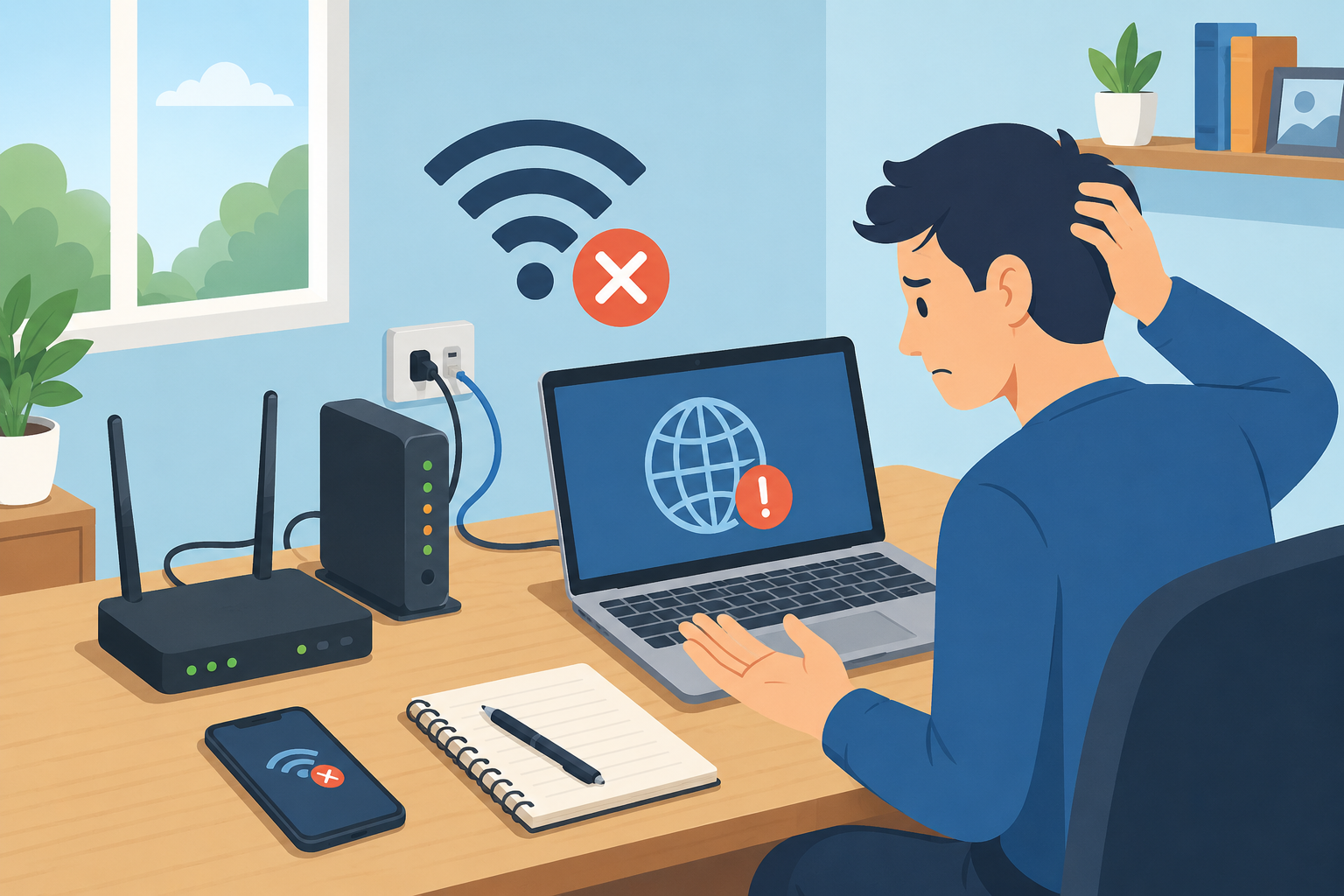
Losing your internet connection can be frustrating, especially when you’re working, attending online classes, streaming your favorite shows, or simply trying to browse the web. Fortunately, most internet connection problems have straightforward solutions that you can troubleshoot without needing advanced technical skills.
If you suddenly can’t connect to the internet, the issue could stem from your router, Wi-Fi settings, IP configuration, firewall, or even your internet service provider. Before calling technical support, it’s worth checking a few common causes that often restore your connection within minutes.
This guide covers the seven most common reasons you can’t connect to the internet, explains why they happen, and provides practical solutions to help you get back online quickly.
1. Check Your Router, Modem, and Cable Connections First
One of the most common reasons people lose internet access is also the easiest to overlook. A loose Ethernet cable, an unplugged modem, or a router that has accidentally been powered off can immediately interrupt your connection.
If you’re using Wi-Fi, make sure your device’s wireless adapter is enabled. Many laptops include a physical Wi-Fi switch or keyboard shortcut that can accidentally disable wireless connectivity.
How to Fix It
Verify that your modem and router are powered on.
Check that all cables are firmly connected.
Restart both the modem and router.
Confirm Wi-Fi is enabled on your device.
If using Ethernet, try another network cable if available.
A simple reboot often resolves temporary network glitches and restores your internet connection.
2. Confirm the Website Isn’t the Problem
Sometimes your internet connection is perfectly fine, but the website you’re trying to access is temporarily unavailable. Server outages happen more often than many people realize.
Instead of assuming your internet is down, try opening several popular websites. If some sites load while one does not, the issue is likely with that specific website rather than your network.
How to Fix It
Visit multiple websites to compare results.
Refresh the page after a few minutes.
Try opening the website on another device.
Clear your browser cache if only one site refuses to load.
This quick check can save you time troubleshooting a problem that isn’t actually on your end.
3. Resolve IP Address Conflicts
Every device connected to your local network needs a unique IP address. If two devices accidentally receive the same address, both may experience connection problems.
IP conflicts commonly occur after router reboots, manually assigned static IP addresses, or network configuration changes.
How to Fix It
Try renewing your IP address.
For Windows:
Open Command Prompt.
Run:
ipconfig /release
ipconfig /renew
For macOS:
Renew your DHCP lease through Network Settings.
If your network uses static IP addresses, ensure every device has a unique IP assignment.
If you’re interested in learning more about how home networks work, understanding network troubleshooting for home internet connections can make diagnosing future issues much easier.
4. Restart Your Networking Equipment Properly
Temporary software glitches inside your modem or router can interrupt internet access even when everything appears normal.
Many people simply unplug the router and immediately reconnect it, but allowing the device to fully power down helps clear temporary errors.
How to Fix It
Follow this order:
Turn off your modem.
Turn off your router.
Wait at least 60 seconds.
Turn on the modem first.
Wait until it’s fully connected.
Turn on the router.
Reconnect your devices.
This process refreshes your network and often resolves intermittent connectivity issues.
5. Check Whether Your Firewall Is Blocking Internet Access
Firewalls help protect your computer from malicious traffic, but occasionally they become overly restrictive and block legitimate internet connections.
This can happen after installing new security software, updating Windows, or running multiple firewall applications simultaneously.
How to Fix It
Temporarily disable your firewall for testing.
Avoid running multiple firewall programs at once.
Re-enable your firewall immediately after testing.
Update your security software if necessary.
If disabling the firewall restores your connection, review its settings to identify the blocked application or network.
Many users also benefit from understanding how to improve your home Wi-Fi security without blocking devices, especially after changing security settings.
6. Move Closer to Your Wi-Fi Router
Wireless signals weaken with distance. Walls, furniture, appliances, and neighboring Wi-Fi networks can all interfere with your connection.
Even if your device detects the network, a weak signal may prevent reliable internet access.
Signs of Weak Wi-Fi
Slow browsing
Frequent disconnections
Video buffering
Video calls freezing
Low Wi-Fi signal indicator
How to Fix It
Move closer to the router.
Place the router in a central location.
Elevate the router away from the floor.
Reduce interference from microwaves and cordless phones.
Consider installing a Wi-Fi extender or mesh Wi-Fi system for larger homes.
Improving signal strength often results in faster speeds and a more stable connection.
7. Verify Your Wi-Fi Password and Router Settings
If your router’s wireless settings have recently changed, your devices may no longer be able to authenticate with the network.
Changing the Wi-Fi password, encryption type, or wireless channel can prevent previously connected devices from reconnecting automatically.
How to Fix It
Confirm the Wi-Fi password is correct.
Check that the encryption method matches your devices.
Verify the Wi-Fi network name (SSID).
Restart the router after making changes.
Reconnect every device using the updated credentials.
If you’ve forgotten the password, log into your router’s administration page and create a new one. Then reconnect all your devices using the updated credentials.
For households upgrading equipment, learning what to consider before replacing your home Wi-Fi router can help prevent future compatibility issues.
Additional Troubleshooting Tips
If none of the solutions above restore your connection, try these additional checks:
Restart Your Computer or Mobile Device
Operating systems occasionally experience temporary networking issues that disappear after a reboot.
Test Another Device
If one device connects successfully while another does not, the issue is likely isolated to the affected device.
Check Airplane Mode
Airplane Mode disables all wireless communication. Verify it hasn’t been enabled accidentally.
Update Network Drivers
Outdated or corrupted network drivers can prevent your computer from connecting properly.
Contact Your Internet Service Provider
If every device in your home has lost internet access despite your equipment appearing to function normally, your ISP may be experiencing an outage or performing maintenance.
How to Prevent Future Internet Connection Problems
While occasional connectivity issues are unavoidable, regular maintenance can significantly reduce unexpected outages.
Here are a few best practices:
Restart your router every few weeks.
Keep your router firmware updated.
Change your Wi-Fi password periodically.
Use WPA3 or WPA2 security whenever possible.
Position your router centrally within your home.
Replace aging networking equipment when necessary.
Avoid placing routers near large metal objects or electronic appliances.
Taking these preventive steps helps maintain a faster, more reliable home network.
Frequently Asked Questions
Why does my Wi-Fi say connected but there’s no internet?
This usually means your device has successfully connected to your router, but the router itself cannot reach your internet service provider. Restarting your modem and router often resolves the issue.
How do I know if my internet provider is down?
Check whether multiple devices in your home have lost internet access. If they have, contact your ISP or visit their service status page to see if there’s a reported outage.
Why does restarting my router fix internet problems?
Restarting clears temporary software errors, refreshes network connections, and forces the router to establish a new connection with your internet provider.
Can a firewall block my internet connection?
Yes. Incorrect firewall settings or conflicting security software can prevent legitimate internet traffic from reaching your computer.
How can I improve my Wi-Fi signal?
Place your router in a central location, minimize interference from other electronics, update your router’s firmware, and consider adding a Wi-Fi extender or mesh system if your home has dead zones.
Final Thoughts
Most internet connection issues can be resolved with a few simple troubleshooting steps. Before assuming your internet service is down, check your hardware connections, restart your networking equipment, verify your Wi-Fi settings, and rule out software-related issues like IP conflicts or firewall restrictions.
By understanding the most common causes behind internet connectivity problems, you’ll be better prepared to diagnose and fix them quickly—often without needing professional assistance.
Related Posts
 Broadband Deals
cable deal
cheap internet deals
Broadband Deals
cable deal
cheap internet deals
Chicago Neighborhood Internet Guide for Better Connectivity
Explore internet options across Chicago neighborhoods, compare providers, understand speeds, costs, and find the best broadband solution.
 Broadband Deals
cable deal
cheap internet deals
Technology
Broadband Deals
cable deal
cheap internet deals
Technology
Fixed Wireless vs 5G Home Internet: Better Than Cable?
Compare fixed wireless and 5G home internet with cable internet. Learn the pros, cons, speeds, costs, and which option fits your home best.
 Regulations
Technology
Regulations
Technology
What Is Powerline Internet? Everything You Need to Know
Learn what Powerline Internet is, how it works, its pros and cons, speed, setup, and whether it’s the best solution for extending reliable internet at home.
 Broadband Deals
cheap internet plans
Broadband Deals
cheap internet plans
Spectrum Internet Cost After 12 Months Explained
Learn how much Spectrum Internet costs after promotional pricing ends. Discover standard rates, billing factors, and ways to reduce monthly costs.
 Internet Bundles
Broadband Deals
Internet Bundles
Broadband Deals
Best Rural Internet Providers to Keep You Connected in 2026
Discover the best rural internet providers in 2026. Compare Xfinity, CenturyLink, and Viasat by speed, pricing, reliability, and coverage.