3 Command Prompt Tricks to Boost your Internet Speed Connection
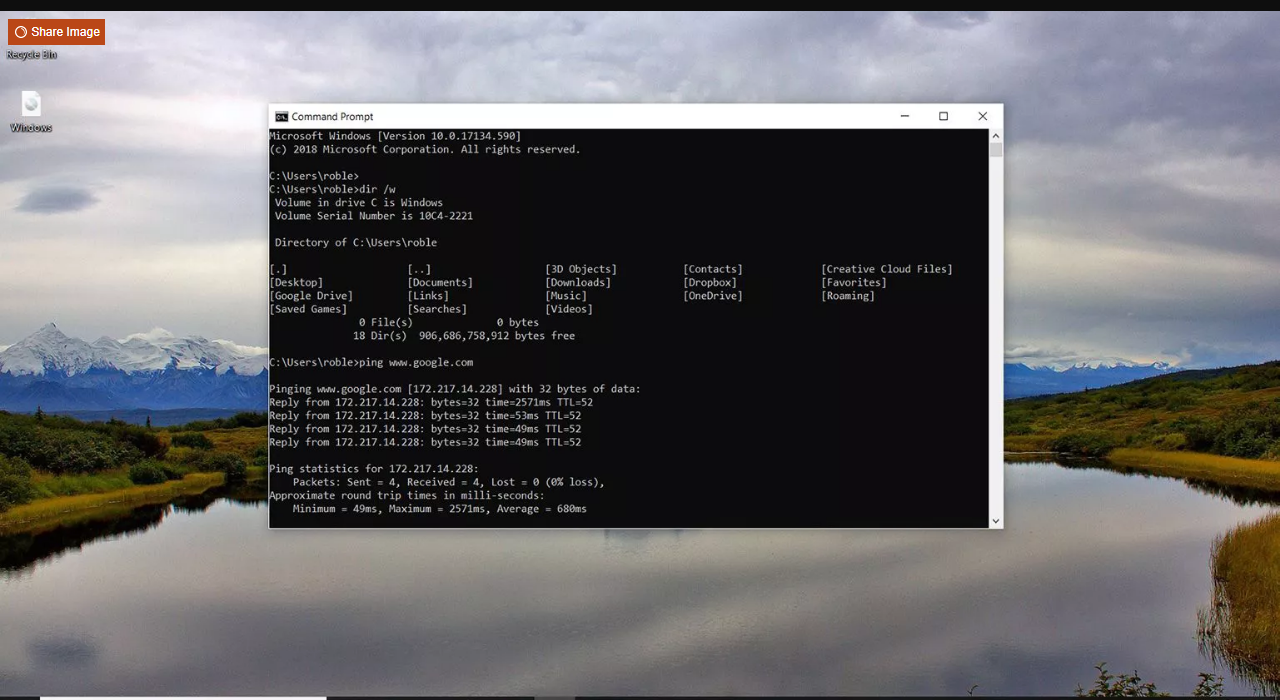
We all experienced slow internet speed, it's a never-ending issue. I might be an issue with ISP or network configuration itself.
Using a Command Prompt can be resolved many common issues such as DNS, IP Address, or DNS. Here are some command prompt tips you can try to fix slow internet issues.
Accessing Command Prompt
Open your Windows Search Bar and type cmd and right-click the Command Prompt option and select "Run as administrator". There are different ways to access the command prompt based on your Windows version. However, type in the Windows search bar is the easiest way.
Once you opened the Command Prompt window
1. Resetting Winsock
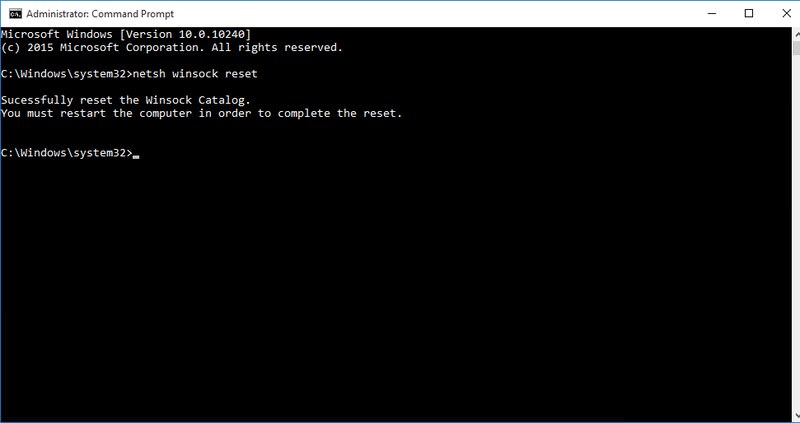
Winsock also known as Windows Network Sockets are used to exchanged information to manage redirect traffic to the right path. However, any corrupted socket may result to slow internet connection.
To reset your Windows Network Socket back to default, type netsh winsock reset in the Command Prompt and press Enter. After execution, restart your computer to apply changes.
2. Renewing IP Address
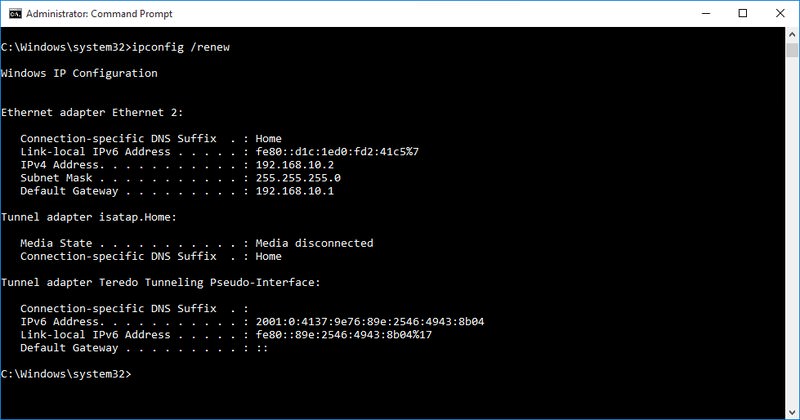
IP conflict or problem at the DHDP server may affect your current IP Address. This will cause a lot of issues including slow internet connection.
To do so, open your Command Prompt and type ipconfig /release and press Enter. This will show you a large column of text.
Next type ipconfig /renew and press Enter for the second time. It will reset your IP Address and solve any related issues including slow internet speed.
3. Flush DNS Resolver Cache
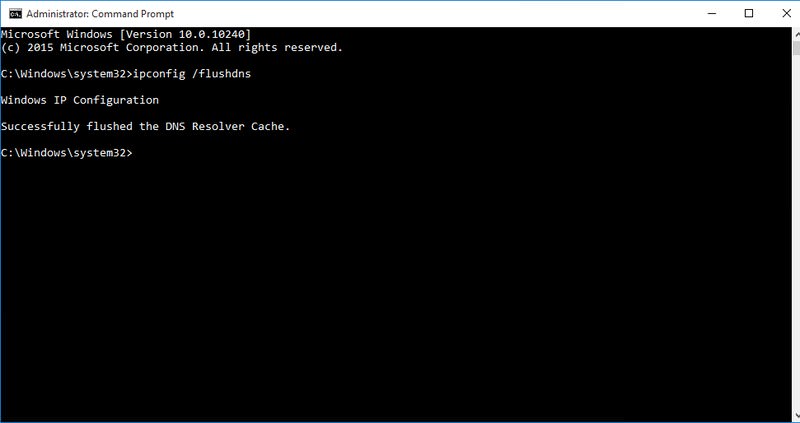
Your computer stores a list of websites IP addresses and hostnames that you browsed and save it to DNS resolver cache. This will save you time with the website you previously visited.
But, Any corruption in the DNS resolver cache will result in no access to website or slow internet connection.
To resolve this, type ipconfig /flushdns on the Command Prompt and press Enter. A text will show saying " Successfully flushed DNS Resolver Cache"
There are many ways to speed up your computer. By doing this command line trick will help you speed up your internet connection.
Related Posts
 Safety
How to Shop Online Safely and Avoid Common Scams
Learn how to shop safely online by avoiding scams, protecting personal data, securing payments, and building smart long-term shopping habits.
 Regulations
Safety
Regulations
Safety
What Is Background Data Usage? Pros and Cons Explained
Learn what background data usage is, its benefits and drawbacks, how it affects internet consumption, and practical ways to reduce data usage.
 Regulations
Technology
Regulations
Technology
Why Fiber Internet Coverage Remains Limited in Some Areas
Learn why fiber internet is still unavailable in many areas, from infrastructure costs to regulations, and what alternatives exist while waiting for expansion.
 cheap internet plans
Subscription
cheap internet plans
Subscription
Frontier TV and Internet Packages Worth Considering Today
Explore Frontier TV and internet packages, compare speeds, features, bundle benefits, pricing options, and find the right plan for your home.
 cheap internet offers
How to Find Cheap Internet That Doesn't Feel Cheap
Learn how to get affordable internet without sacrificing speed. Compare providers, optimize your network, and save on your monthly bill with smart strategies.